Display Driver Uninstaller (DDU)
Cleanly remove GPU drivers and leftovers for a truly fresh driver install.
Safe Mode recommended. Create a restore point before use. Transparent, community-trusted utility — not affiliated with GPU vendors.
Download DDU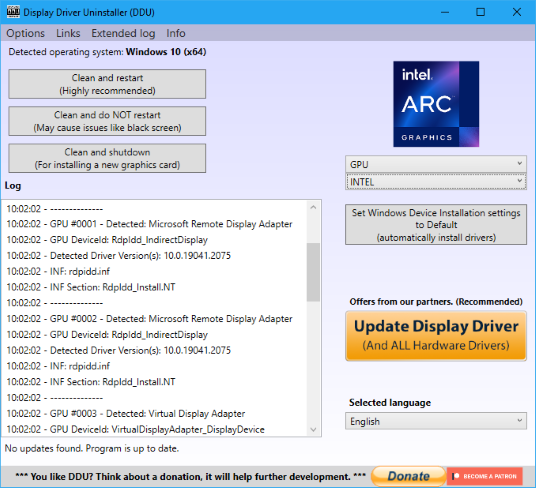
What is Display Driver Uninstaller (DDU)?
Display Driver Uninstaller is a Windows utility that completely removes AMD, NVIDIA, and Intel graphics drivers and all associated leftovers: registry keys, driver store components, folders, files, and vendor-specific caches. Standard uninstallers and Windows Control Panel removal often leave these remnants behind, which can cause driver install failures, crashes, black screens, and conflicts—especially when switching GPU brands.
Use DDU when the standard uninstall fails, when you are switching from one GPU vendor to another (e.g. AMD to NVIDIA), or when troubleshooting driver-related issues such as install errors, freezes, black screens, or performance drops. After running DDU, you get a clean driver environment similar to a fresh Windows install; you then install your new driver manually.
Key Features
Leftover Removal
Removes registry keys, driver store files, and folder/file leftovers for a complete cleanup.
Safe Mode Workflow
Designed to run in Safe Mode for maximum stability and to avoid active driver interference.
Portable, No Install
Runs from a folder—no installation. Extract and run from a local drive.
Multi-Vendor Support
AMD, NVIDIA, and Intel GPU drivers; optional basic Realtek audio cleanup.
Clean and Restart / Shutdown
Clean and restart for single-GPU cleanup; clean and shutdown for GPU swap.
Manual Reinstall Guidance
Step-by-step guides for Safe Mode, disconnecting internet, and installing drivers after DDU.
How it works
Follow these seven steps for a safe, clean GPU driver removal and fresh install using Display Driver Uninstaller.

Step 1
Download DDU from the download button (ZIP or EXE). Get it from the official source or a trusted mirror.
Step 2
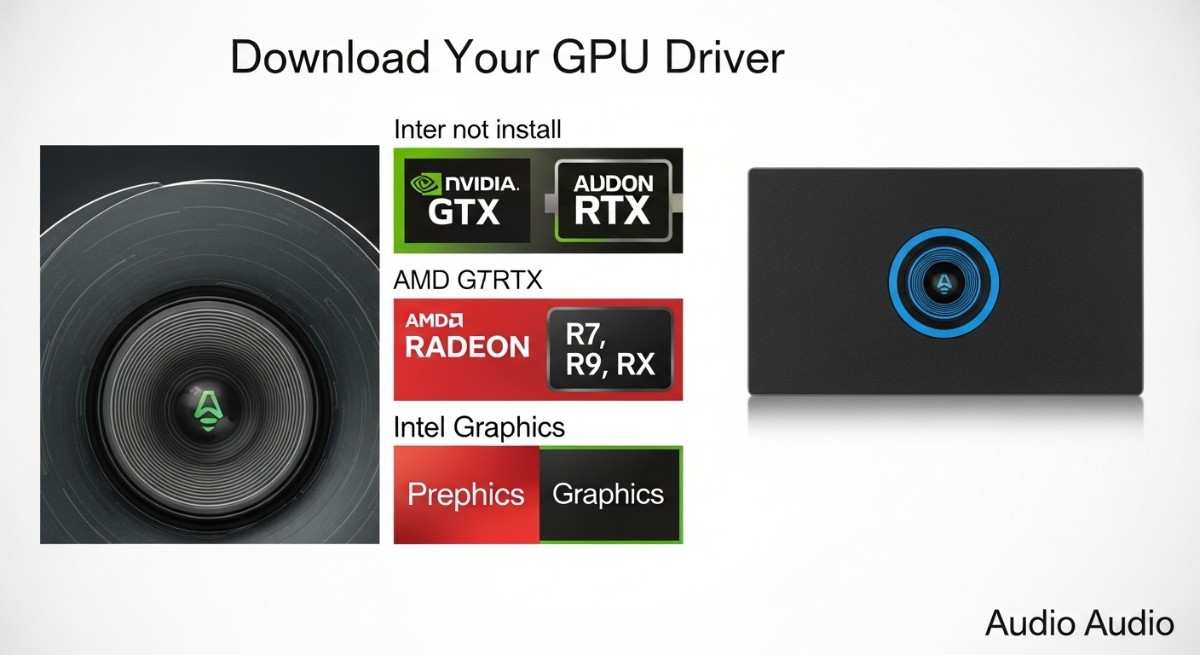
Download your GPU or audio driver (NVIDIA, AMD, or Intel). Do not install yet.
Step 3
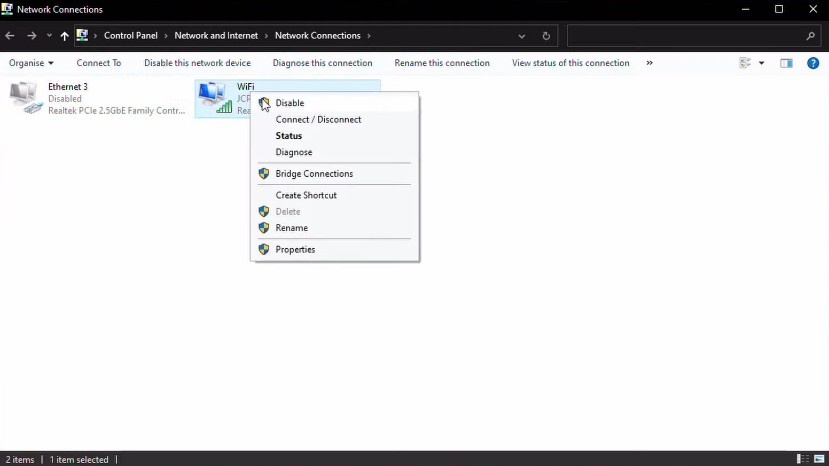
Disconnect network connections (Wi‑Fi and Ethernet) so Windows does not auto-install drivers.
Step 4
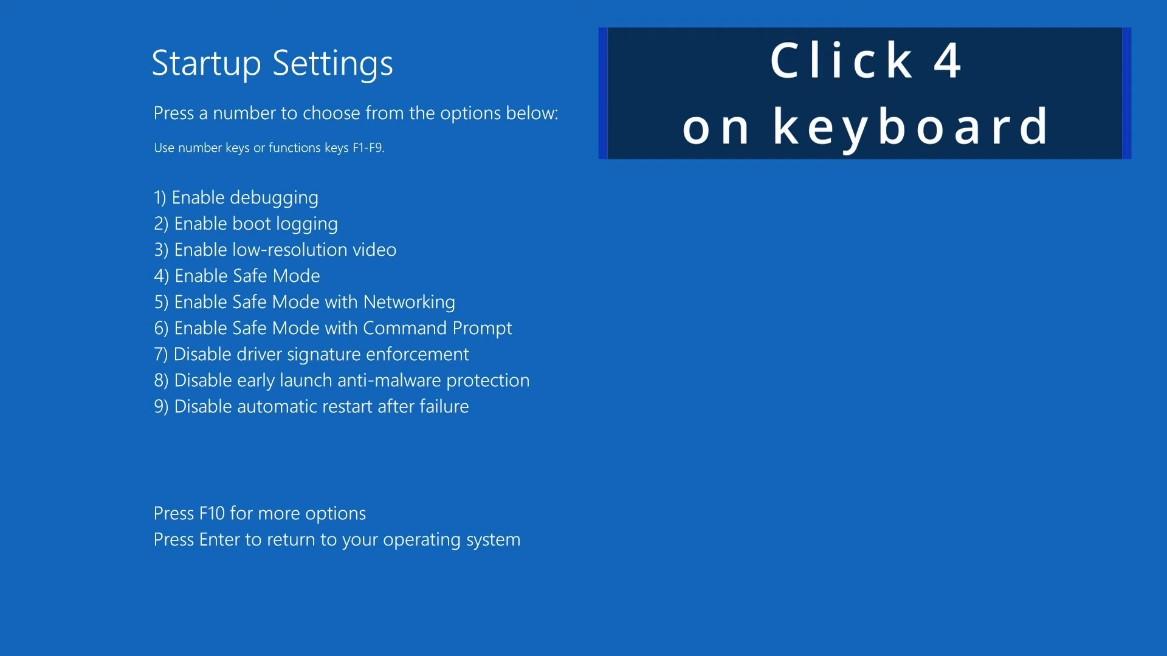
Boot into Safe Mode (Shift + Restart → Troubleshoot → Startup Settings → press 4).
Step 5
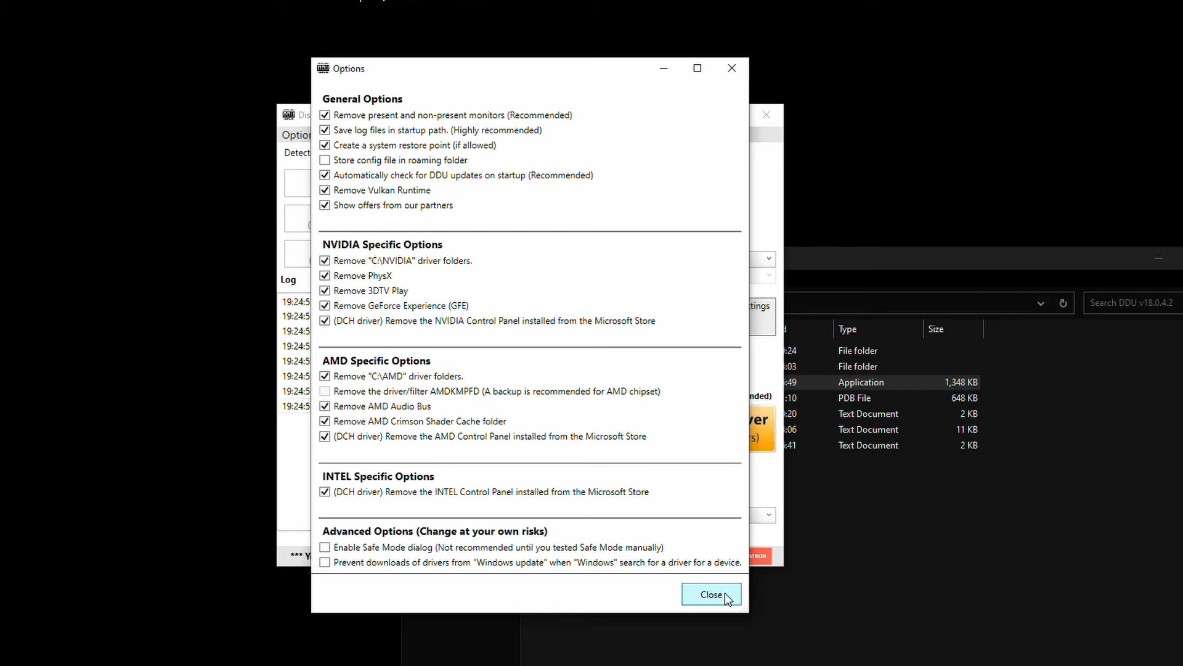
Extract and launch DDU from a local drive (e.g. Desktop or C:\DDU). Do not run from a network drive.
Step 6
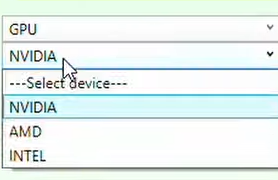
Select device (GPU), vendor (NVIDIA/AMD/Intel), then choose Clean and restart or Clean and shutdown.
Step 7
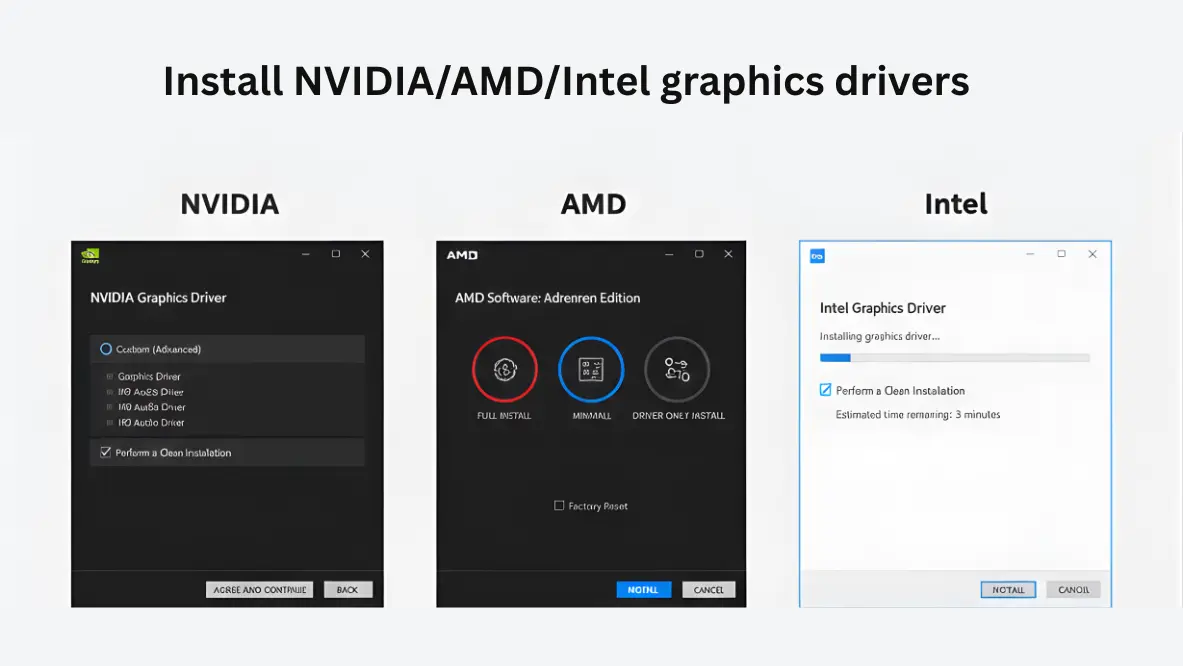
Install the new driver you downloaded. Restart when prompted. Reconnect internet after.
Who Uses DDU?
Gamers
Fix driver-related crashes, black screens, and performance issues; clean install before major driver updates.
PC Technicians
Resolve install failures and conflicts quickly without reinstalling Windows.
IT Admins & System Builders
Standardize clean driver deployments and troubleshoot problematic machines.
Power Users
Switch GPU brands or perform deep cleanup when vendor tools are insufficient.
Standard Uninstaller vs Display Driver Uninstaller (DDU)
Standard Windows or vendor uninstallers remove basic driver files but often leave registry entries, driver store data, and caches. DDU is specialized for deep GPU driver cleanup. Generic uninstallers are not designed for driver store or graphics-driver leftovers; DDU targets exactly that.
| Feature | Standard / Vendor Uninstaller | DDU |
|---|---|---|
| Removes active driver files | Yes | Yes |
| Cleans registry leftovers | No | Yes |
| Removes driver store components | No | Yes |
| Clears cache / shader leftovers | No | Yes |
| Safe Mode operation | No | Yes (recommended) |
| Removes vendor services / profiles | No | Yes |
| Best for GPU brand switching | No | Yes |
| Troubleshooting install failures / crashes | Limited | Yes |
Explore more
Features
Full feature breakdown: deep driver removal, Safe Mode, portable use, multi-vendor support, and product UI.
Go to FeaturesGuides
Step-by-step: Safe Mode, recommended workflow, install drivers after DDU, GPU switch, black screen, and more.
Go to GuidesFAQ
Common questions on safety, Safe Mode, antivirus, Windows 11, reinstall, and who develops DDU.
Go to FAQDownload
Get DDU v18.1.4.2, system requirements, checksum verification, and safety notes.
Go to DownloadTrust & Transparency
DDU is intended for legitimate troubleshooting and clean driver installs. We recommend creating a system restore point or backup before use and running DDU in Safe Mode for maximum stability. The tool is not affiliated with AMD, NVIDIA, or Intel; those vendors are not responsible for its use.
Downloads should be obtained from the official source (Wagnardsoft) or trusted mirrors. Verify integrity using checksums (e.g. SHA-256) when the developer publishes them to ensure the file has not been altered.
Trust & Security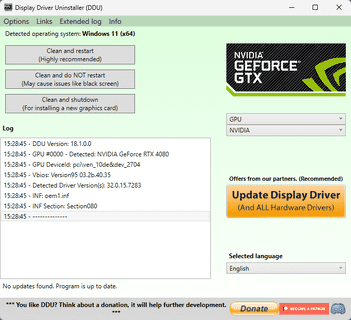
Ready for a clean driver install?
Download Display Driver Uninstaller from the official source. Create a restore point, use Safe Mode, and follow our guides.
Download DDU


